

Transcripts
Dieser Inhalt ist noch nicht in deiner Sprache verfügbar.
Transcription writes down the whole conversation, word for word, with the speaker’s name in front of each line. The transcript is stored on the call and is the raw material for the four modules that follow. Summary, Sentiment analysis, Tasks and Contact summary are all made from it.
Where you see it
In the call
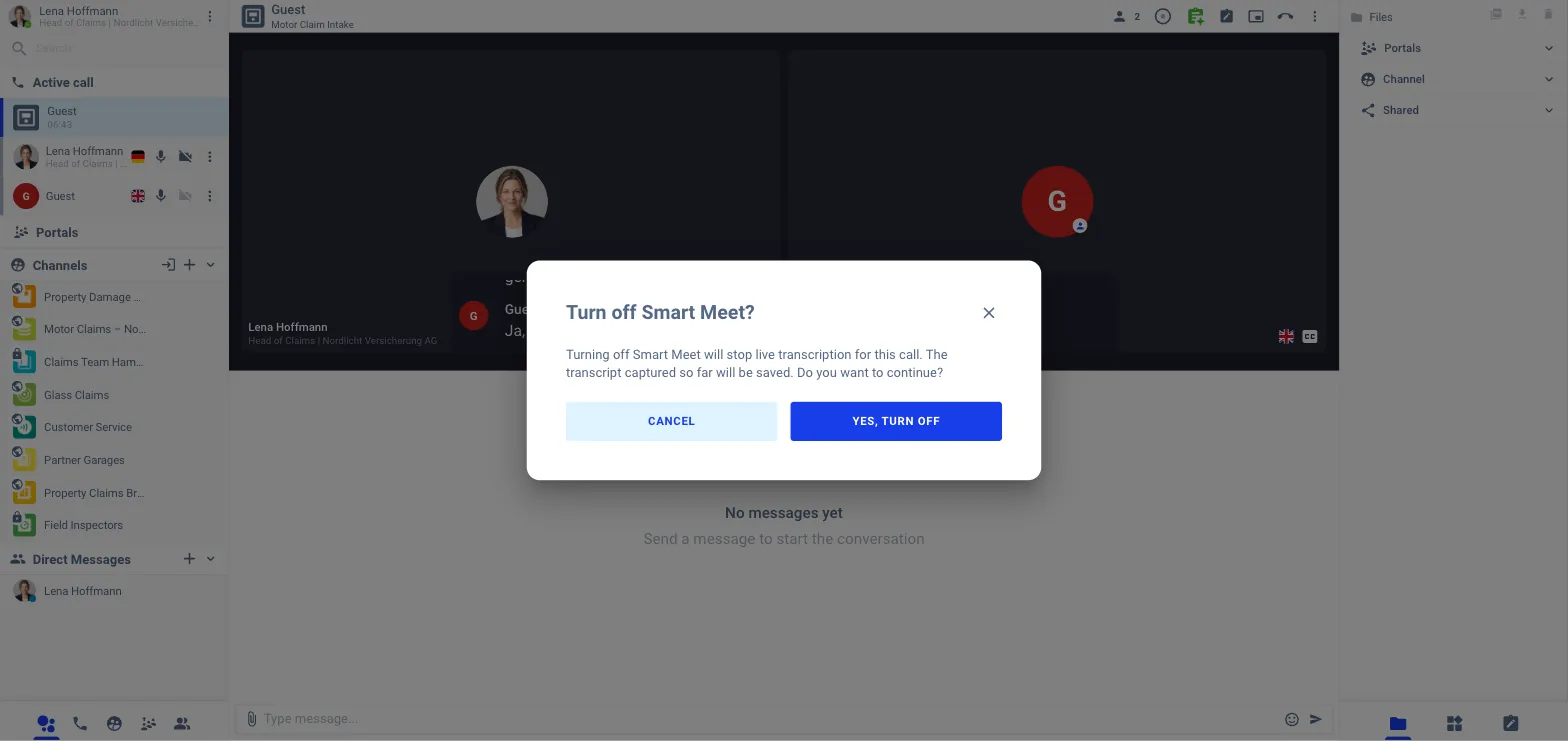
Transcription runs by itself in every portal and channel type where the admin switched it on. The green Smart Meet badge in the call header shows that it is active. Clicking the badge lets the agent switch it off for this call; what was captured so far is kept.
After the call, in the channel
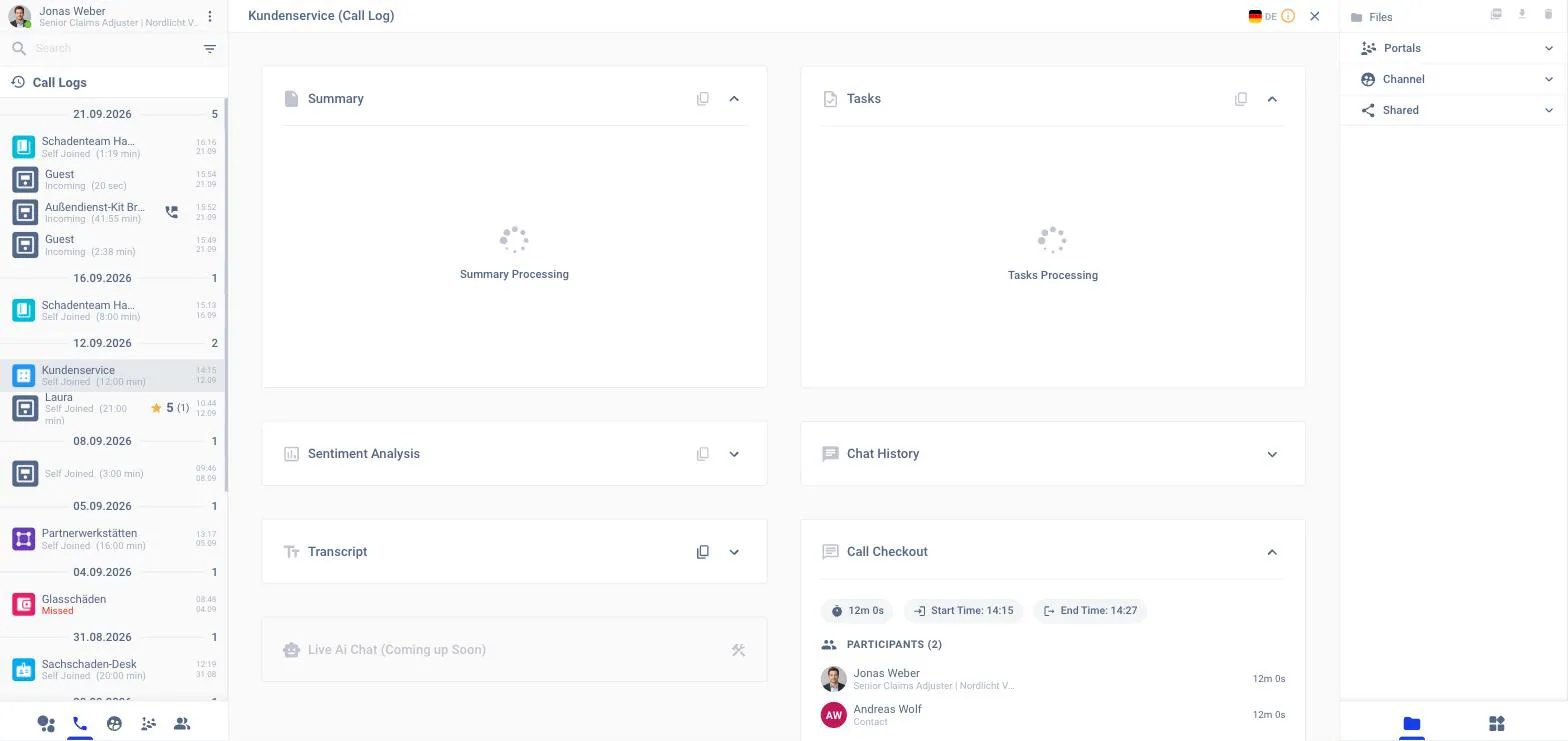
Every finished call is listed under the phone tab at the bottom of the left panel. Opening a call shows the Call Log view with one card per result: Summary, Tasks, Sentiment Analysis, Transcript, Chat History and Call Checkout. The flag at the top right switches the language; the menu offers Translate, Send as e-mail and the download.
From the Home page
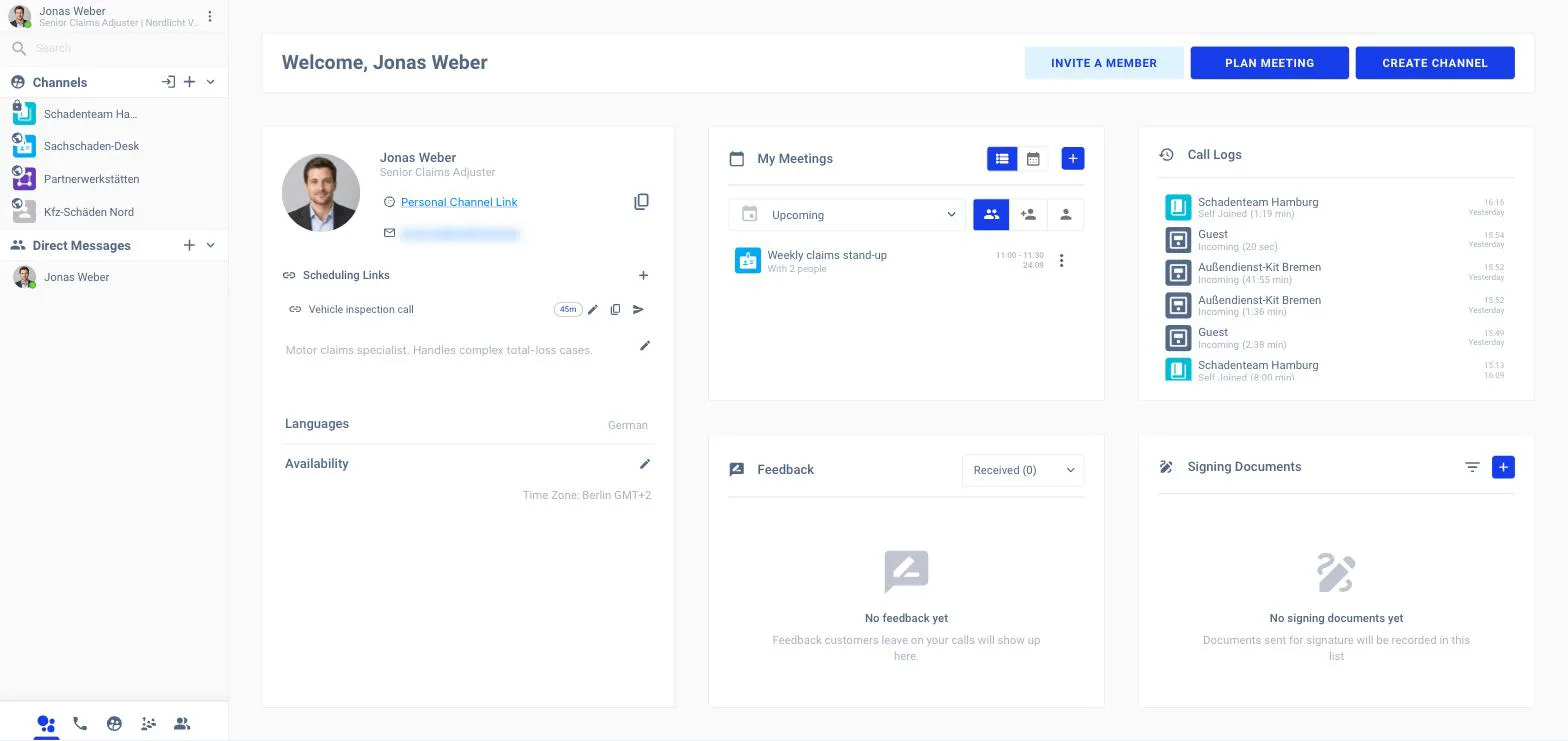
The Call Logs panel on the Home page lists the latest calls; clicking one opens the same Call Log view.
In the back office
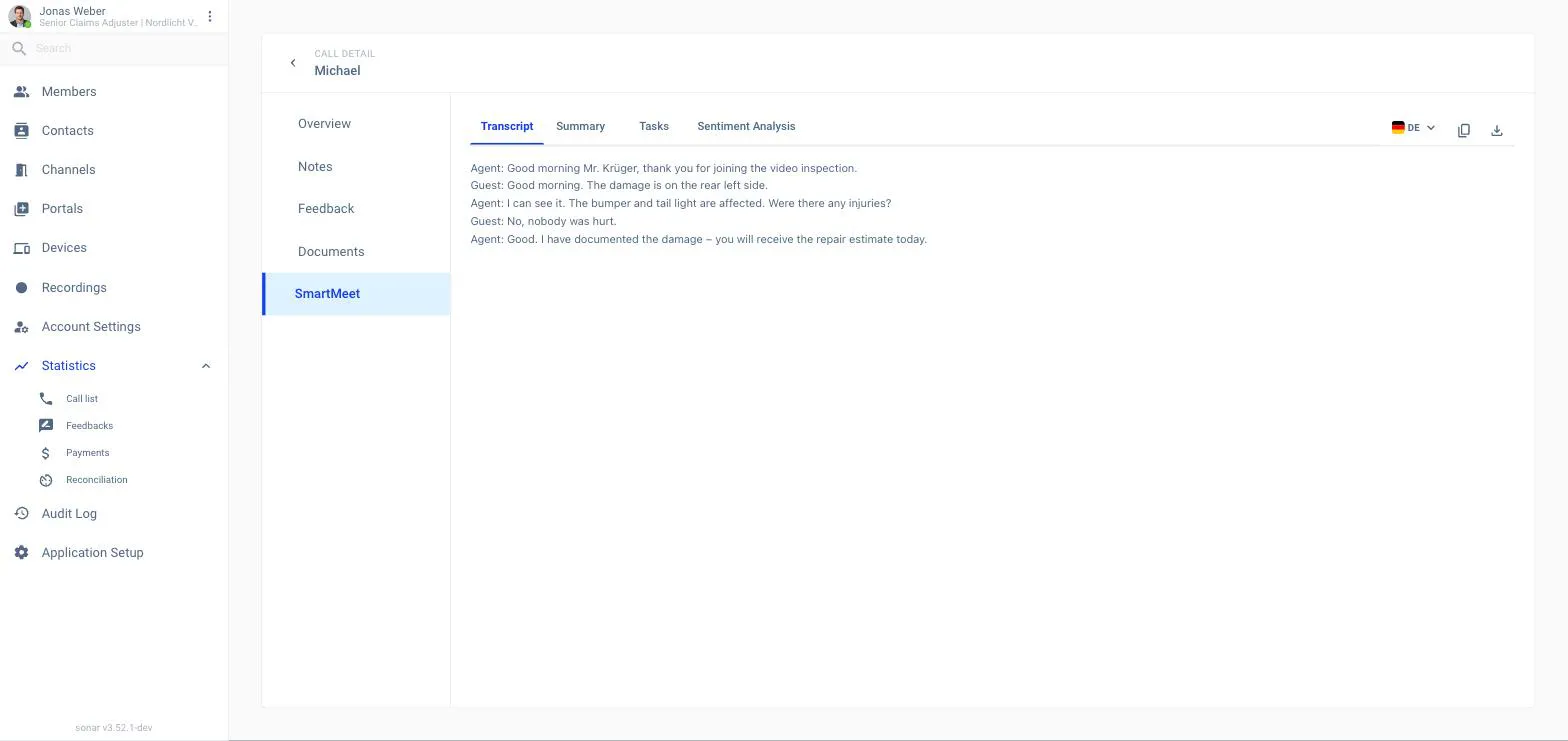
Admins open Statistics → Call list, pick a call and choose the SmartMeet tab. It has four sub-tabs: Transcript, Summary, Tasks and Sentiment Analysis. The flag picks the language, the copy icon copies the text, and the download icon exports everything as a zip.
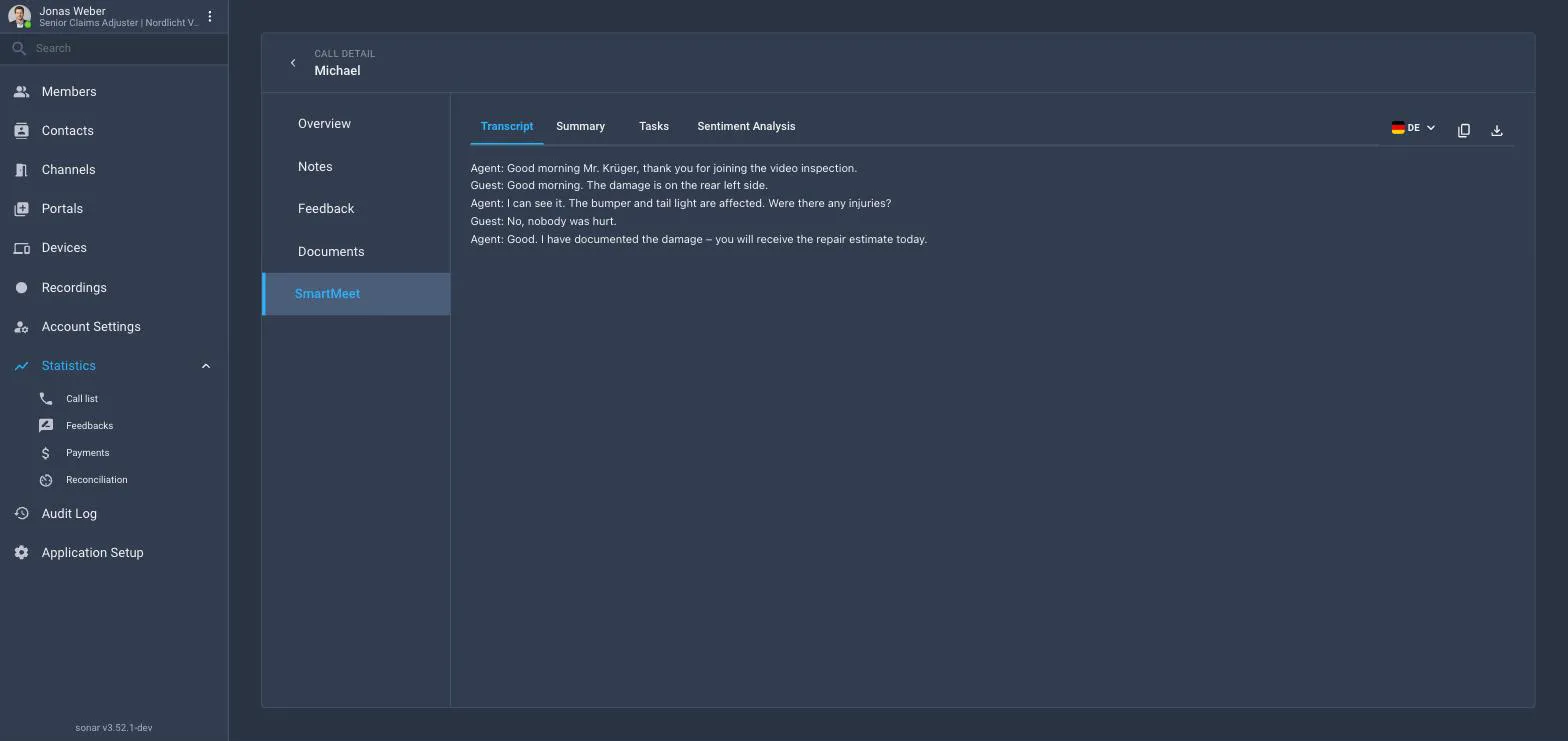
If Smart Meet found nothing usable (a silent or very short call) the tab says No Transcript Content and the other Smart Meet tabs stay empty too.
Who may open a transcript
Reading a transcript afterwards is controlled separately from starting it: Application Setup → Smart Meet → Data protection → Who may open a transcript. The choices are whoever was in the call, the member who was in it and admins. See Data retention & consent.
Switching it on for the workspace
Admins enable the module on Application Setup → Smart Meet → Modules → Transcription and choose where it runs. Switching Transcription off switches Summary, Sentiment analysis, Tasks and Contact summary off with it; their portals and channels are remembered and come back when Transcription is switched on again.