

Summary
Summary turns the transcript into a few sentences: what the customer called about, what was found, what was agreed. It is what a colleague reads when they need to know what happened in a call without reading the whole transcript.
Where you see it
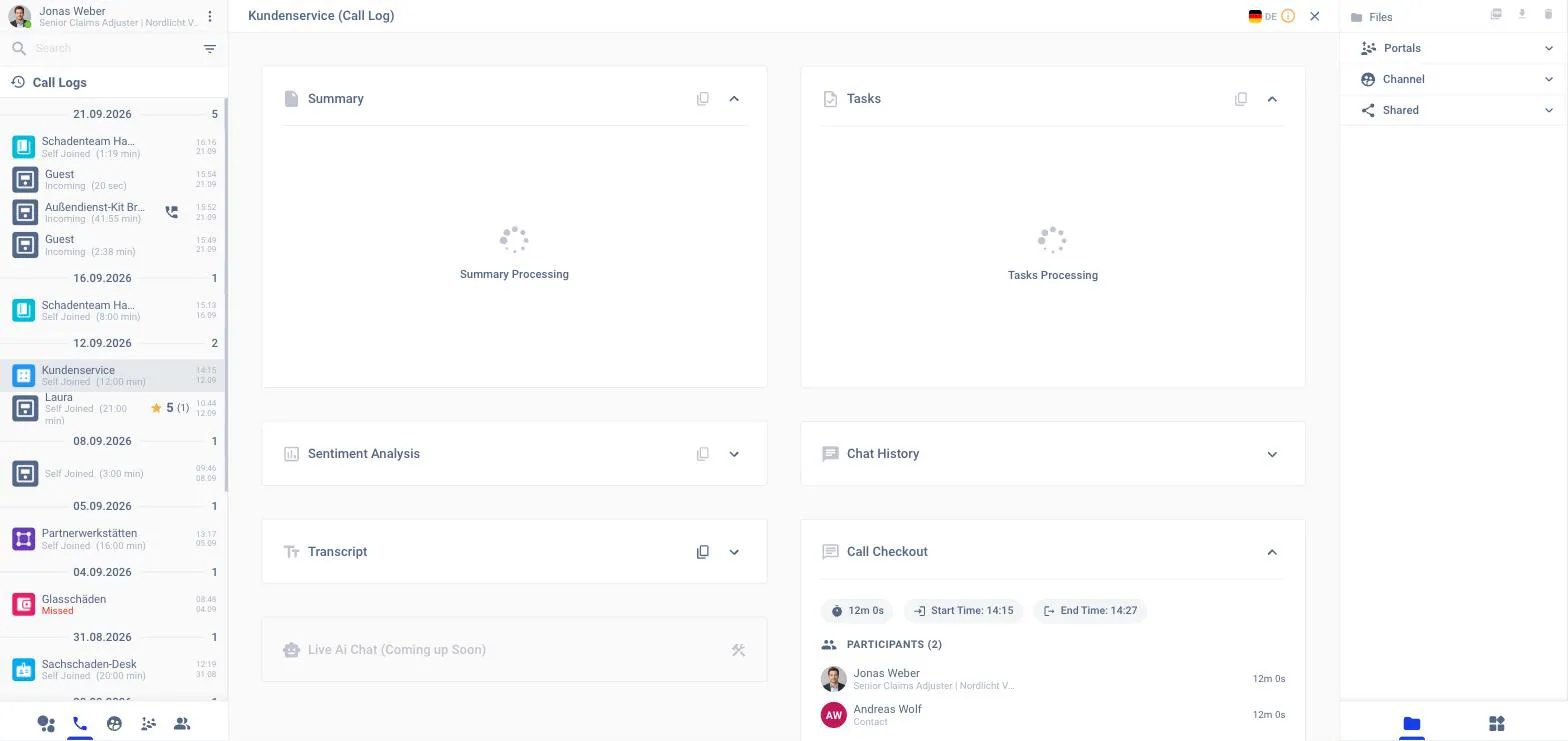
In the channel Call Log
Open a past call from the phone tab of the left panel or from the Call Logs panel on the Home page. The Summary card is the first one.
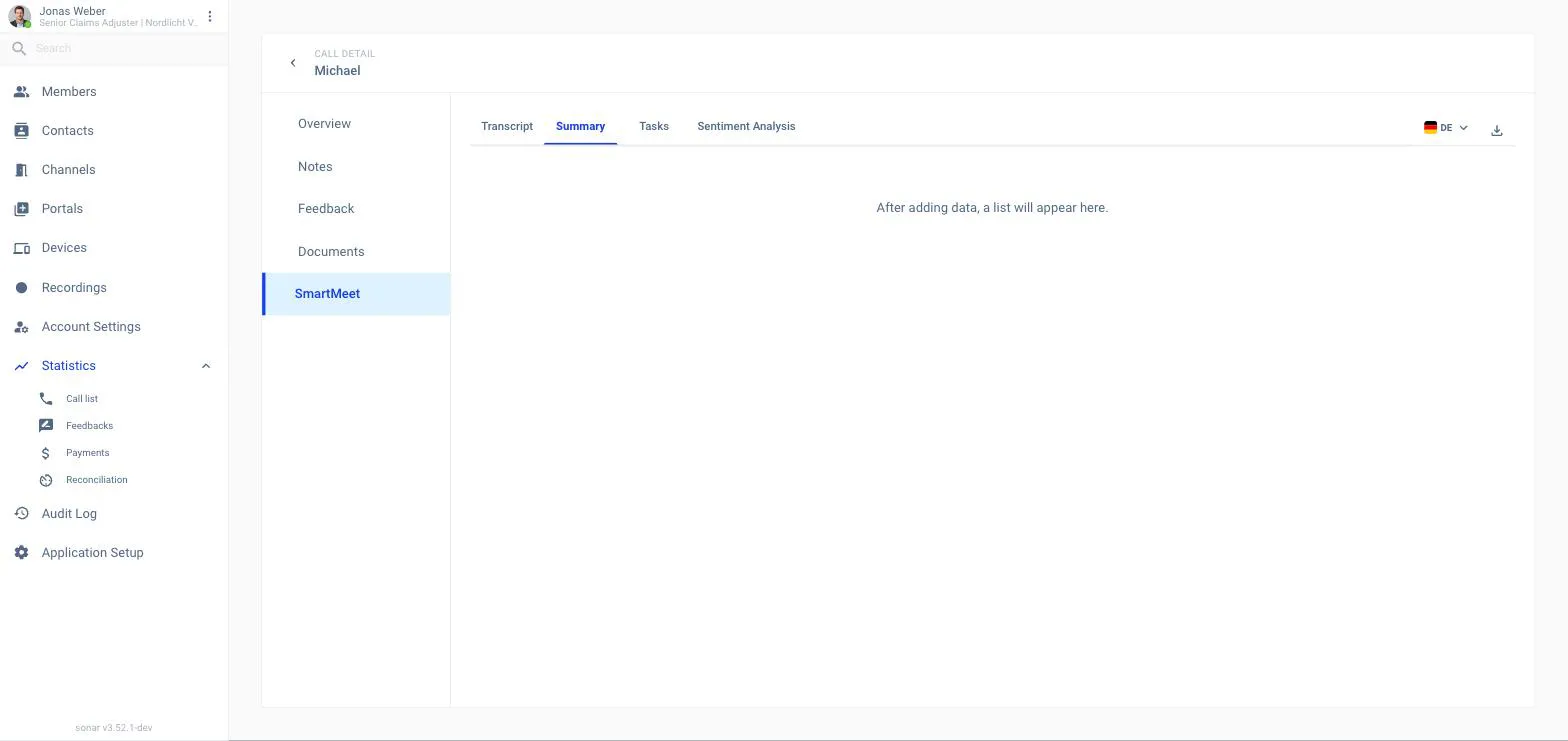
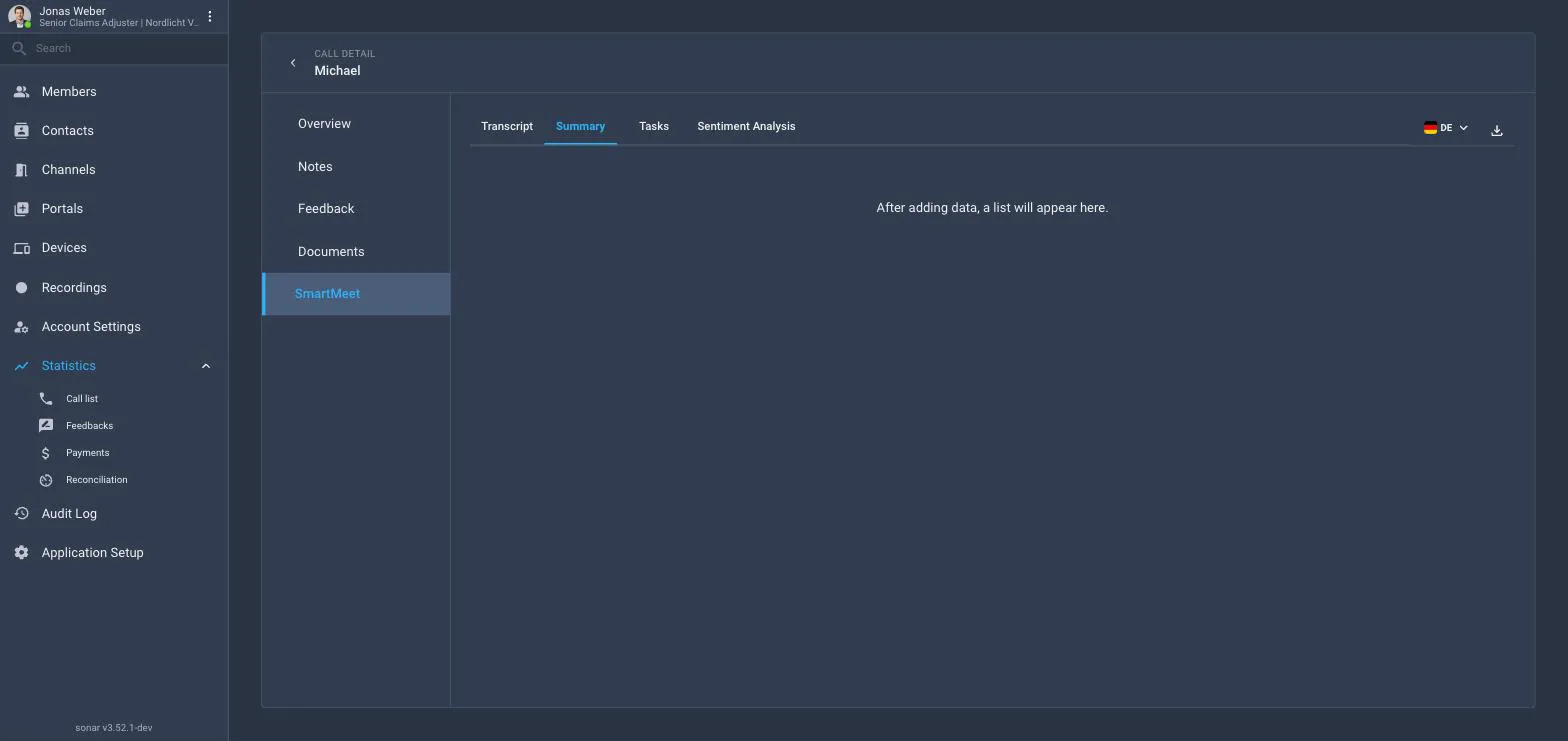
In the back office
Statistics → Call list → call → SmartMeet → Summary. Use the flag to read it in another language; the summary is generated per language on request.
On the contact
For identified contacts the summaries of all calls feed the contact summary on the contact’s Overview.
Switching it on for the workspace
Application Setup → Smart Meet → Modules → Summary. It needs Transcription: it can only run in portals and channel types where Transcription also runs, and it is switched off together with Transcription.