

Microphone
Mute and unmute yourself.
Video calls in Sonar start from a channel. You pick who to call, check your camera and microphone, and start — the call runs in the browser, and external guests can join from a link with nothing to install.
Open a channel and click the call icon in the channel header to open the Start a Call dialog.
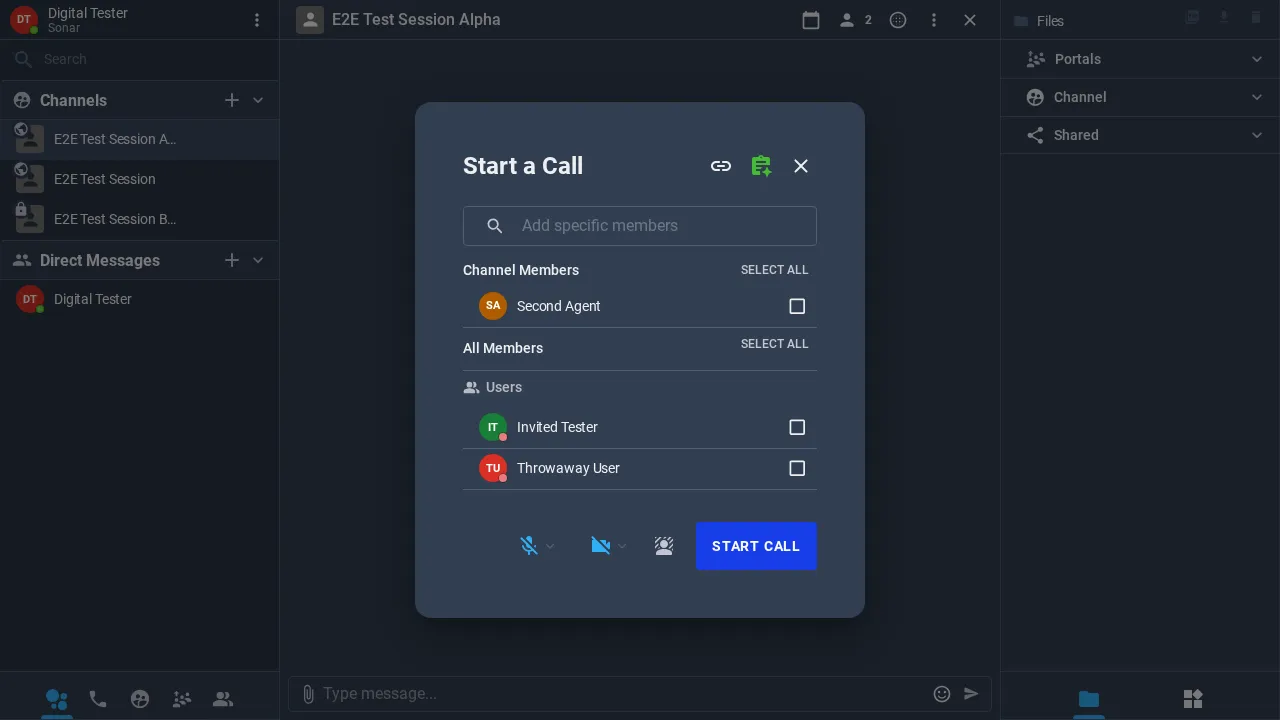
Select who to call from Channel Members or All Members — or use Add specific members to search. Select All invites everyone.
Check your microphone, camera and background with the buttons at the bottom of the dialog.
Click Start Call. You can also copy an invite link or add the call to your calendar from the icons at the top of the dialog.
Everyone in a call gets a toolbar with these controls:
Microphone
Camera
Closed captions
Language
Live translation
Chat
Files
Screen share
Device settings
End call
Participants open the invite link and land in a lobby, where they can check their camera and microphone before joining. Guests don’t need an account. See For Participants for the guest experience.