

General
Name, portal link, short link, QR code and description.
A Portal is a public video entry point. You share a link (or a QR code), and customers use it to reach an available person by video — a browser-based video contact-centre. Customers who are waiting to be picked up form the portal’s queue.
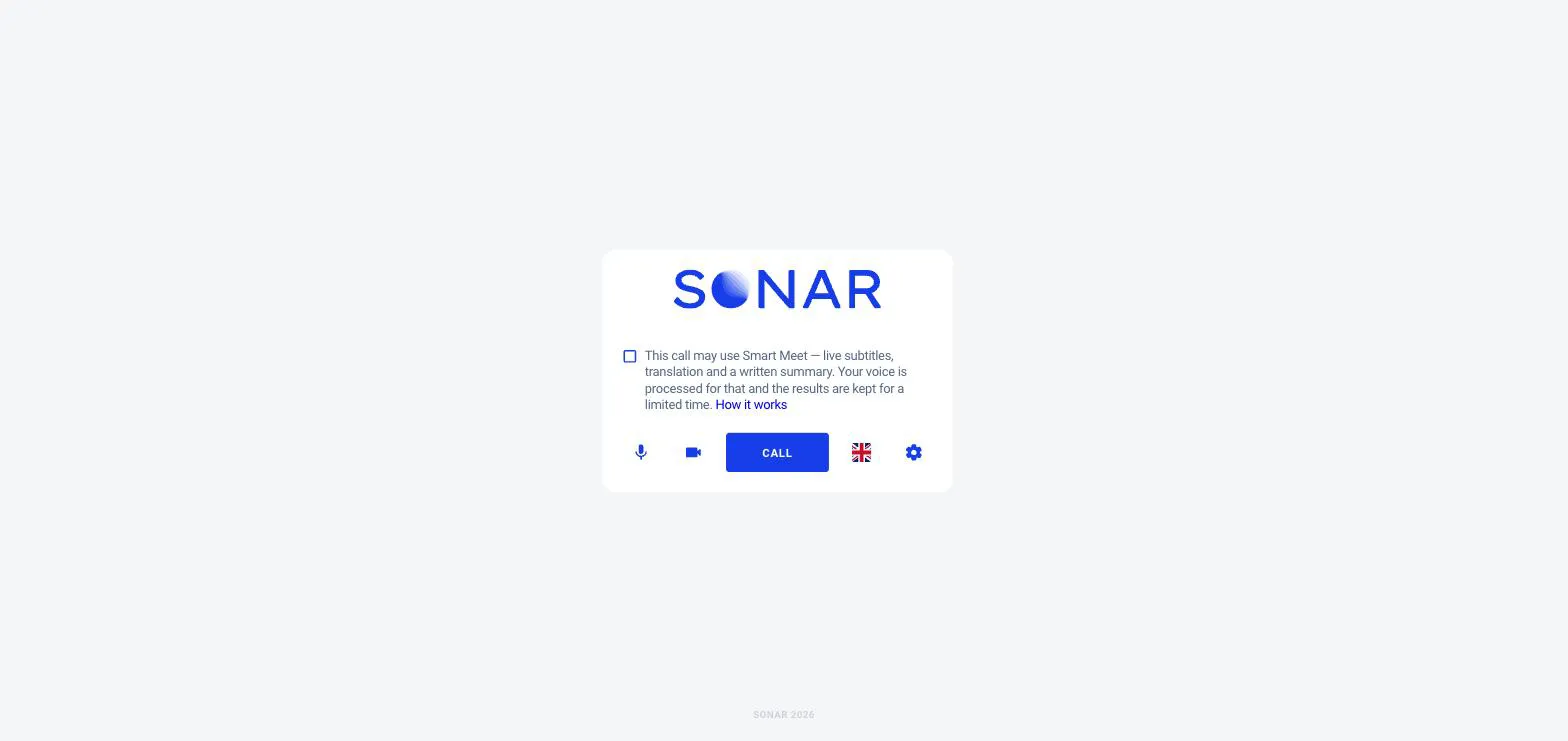
Opening a portal link shows a simple, branded screen: the customer checks their microphone and camera, then clicks Call to enter the queue. No account and no install.
When a customer calls in, they appear in the Portal Calls tab of the left navigation. A member of that portal picks up the call to start the video session.
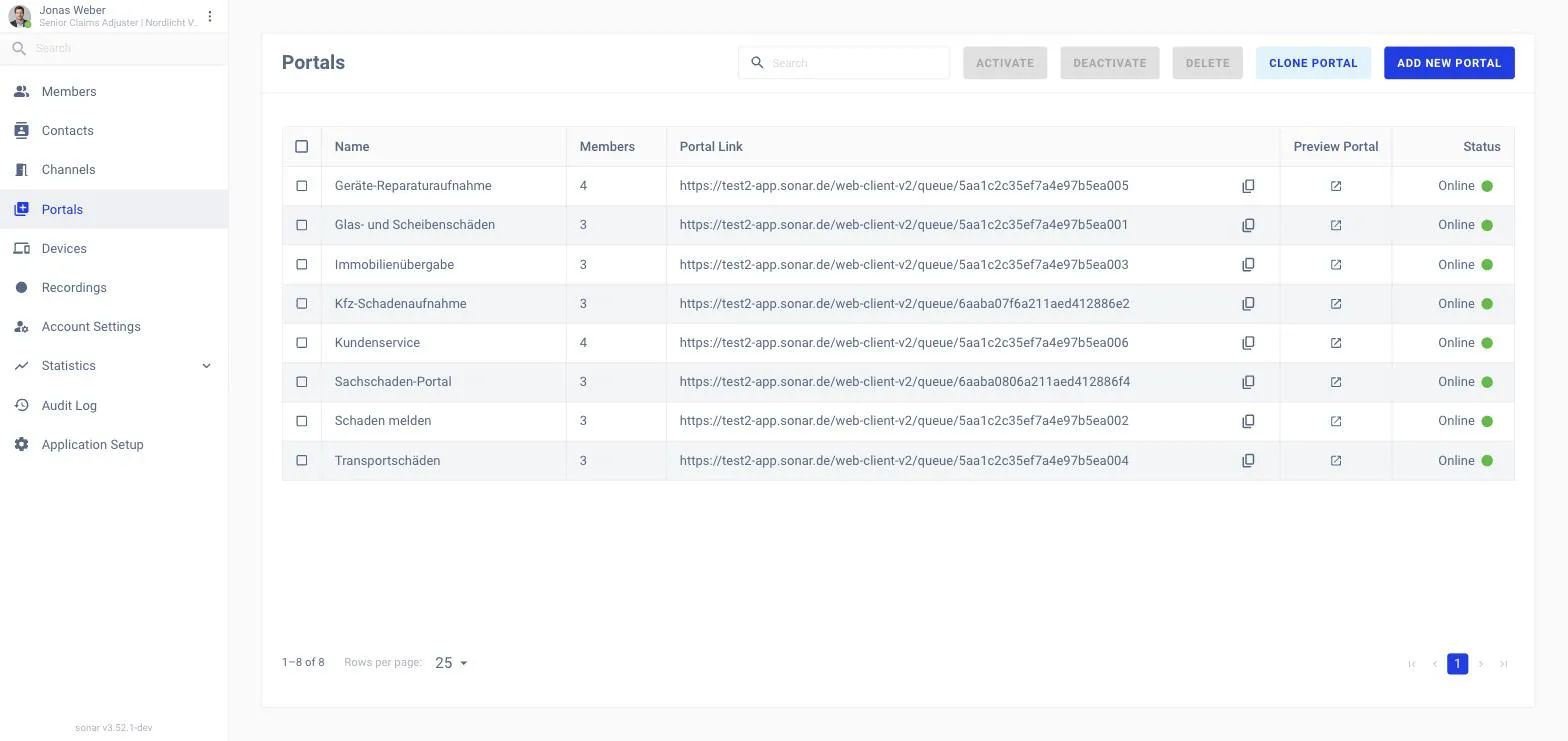
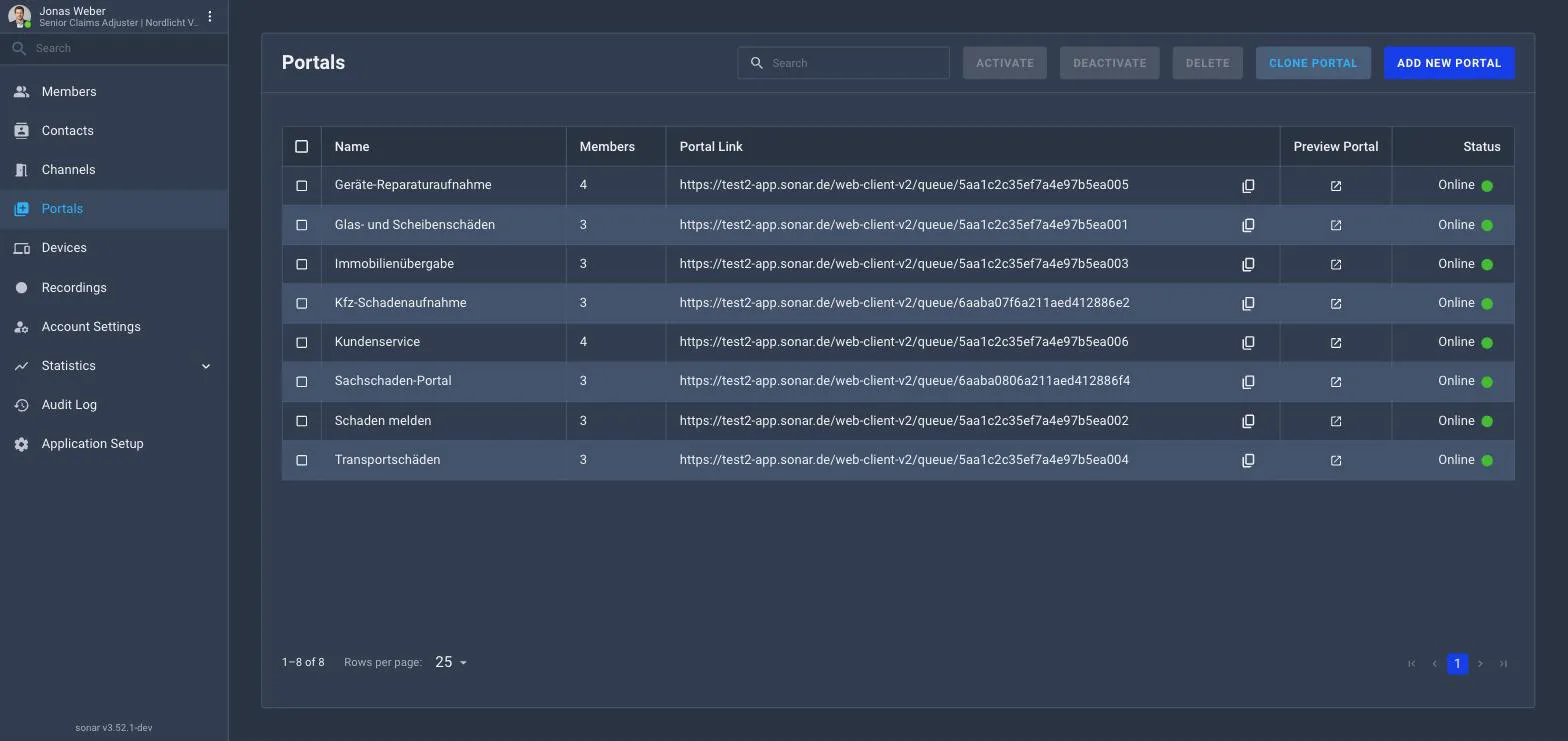
Admins manage portals from the back-office Portals list, where each portal shows its members, its link, a preview action, and whether it’s Online. From here you can add, clone, activate, deactivate or delete portals.
Opening a portal reveals its configuration, organised into tabs:
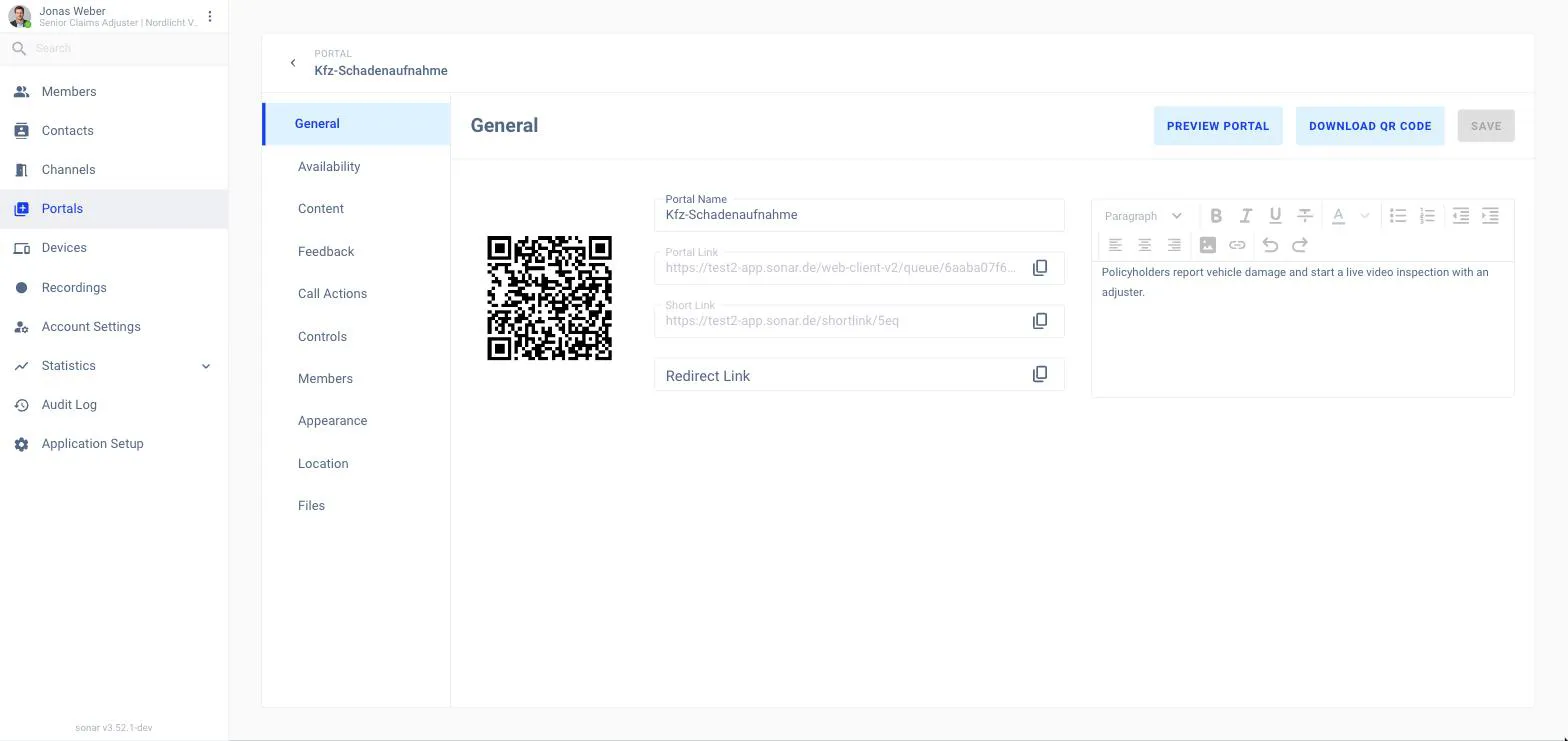
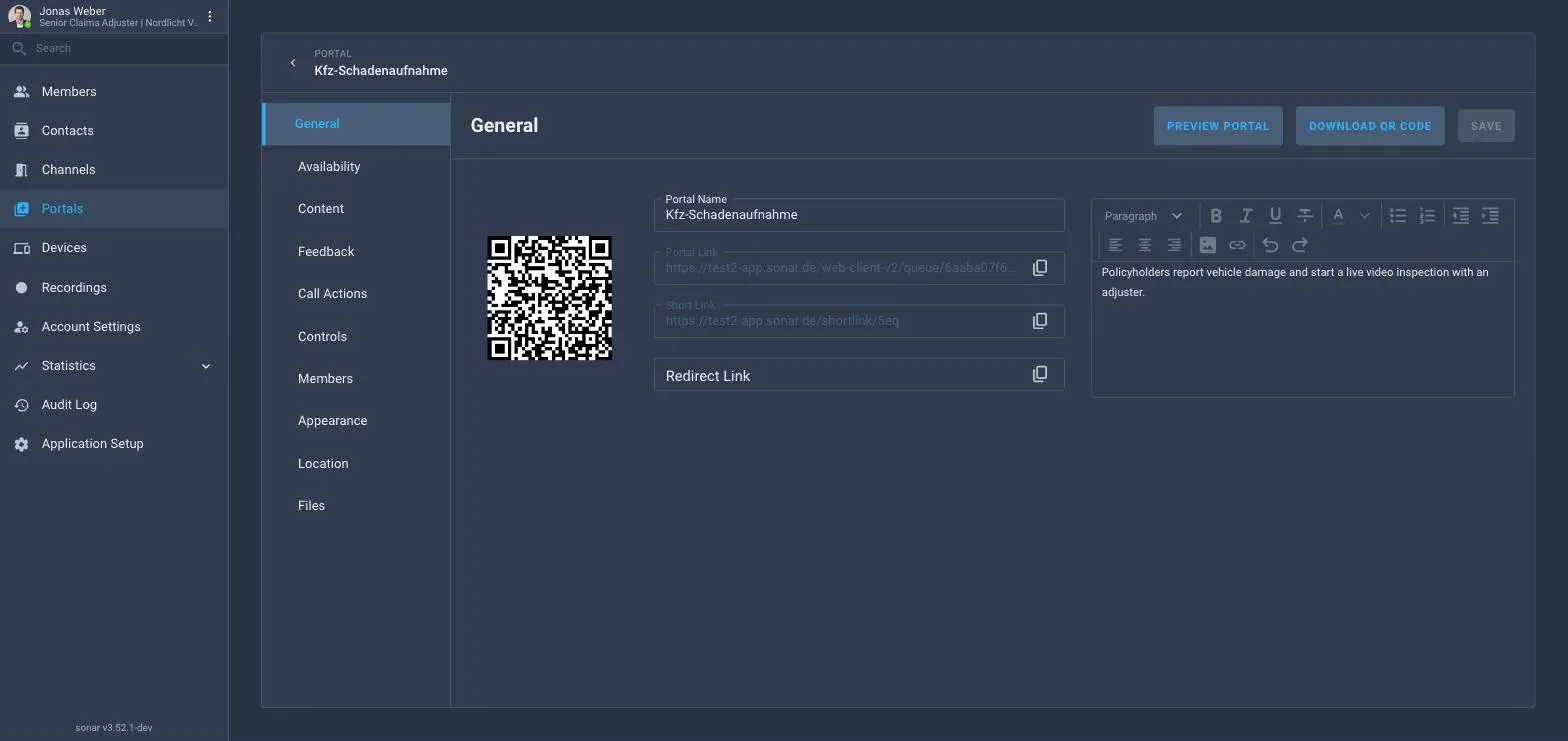
General
Availability
Content
Controls
Members
Appearance
Feedback
Call Actions
Location
Files
Share a portal by its portal link, a shorter short link, or the QR code — all available on the portal’s General tab.