
Skip to content

Application Setup

Admin

Application Setup is where admins configure the whole workspace. Open it from Application Setup in the back-office navigation. Settings are grouped into tabs down the left.
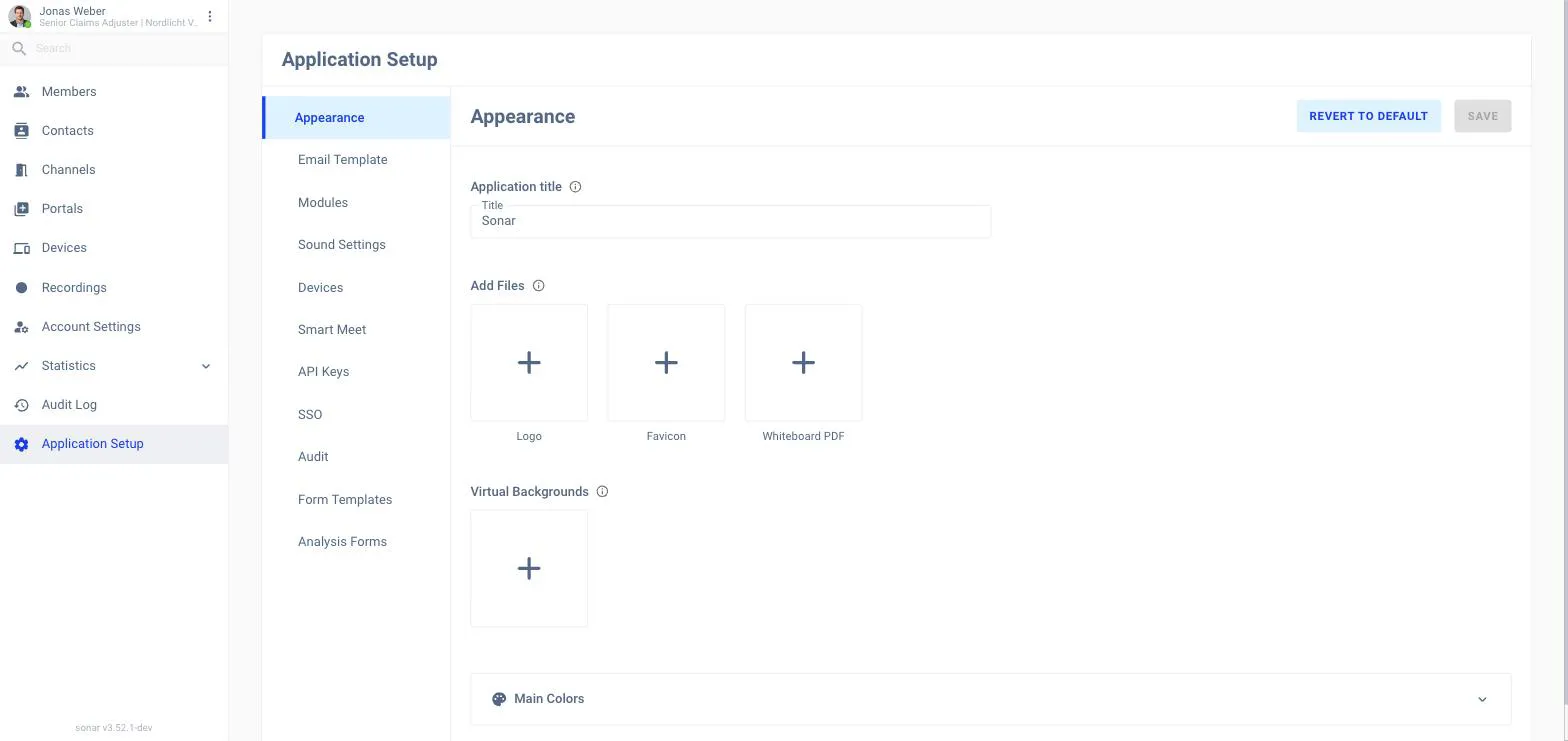
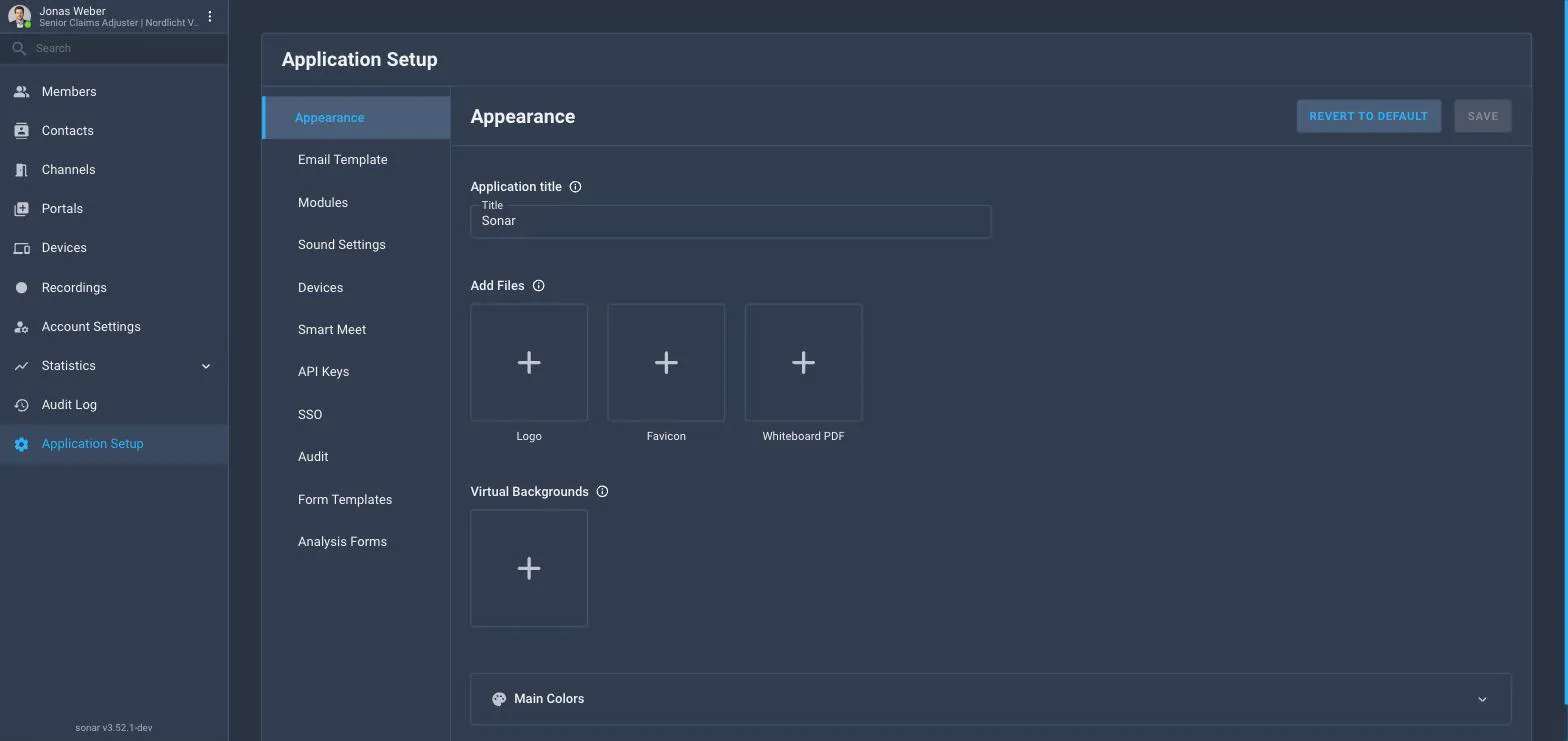
The Application Setup page with an Appearance tab selected, showing an Application title field, Logo, Favicon and Whiteboard PDF upload boxes and Virtual Backgrounds, and tabs for Email Template, Modules, Sound Settings, Devices, AI Assist, API Keys, SSO, Audit and Analysis Forms
Application Setup — the Appearance tab.

The tabs

Appearance

Application title, logo, favicon, whiteboard PDF and virtual backgrounds — your branding.

Email Template

The transactional emails Sonar sends.

Modules

Turn product features on or off for the workspace.

Sound Settings

Global notification sounds.

Devices

Defaults for device/kiosk clients.

AI Assist

AI options across the workspace.

API Keys

Keys for external integrations and the SDK.

SSO

Single sign-on (OIDC / Microsoft Entra).

Audit

Audit-log settings.

Analysis Forms

Capture forms used by AI damage analysis.

Branding (Appearance)

On Appearance you set the Application title and upload a Logo, Favicon and a Whiteboard PDF, and manage Virtual Backgrounds. Use Save to apply, or Revert to Default to undo.

API keys

The API Keys tab is where you create keys for external integrations, including the Sonar SDK. Click New API Key to create one.
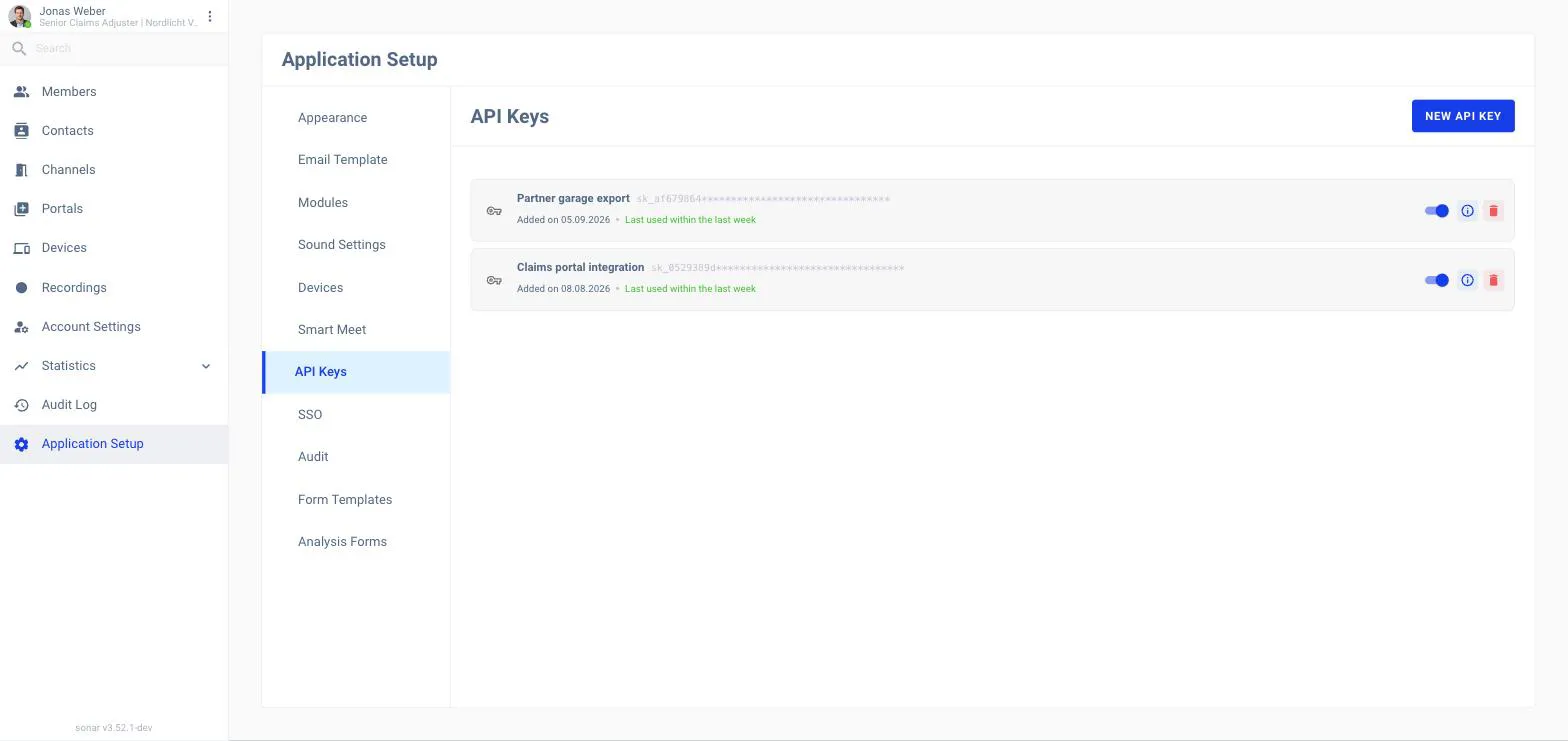
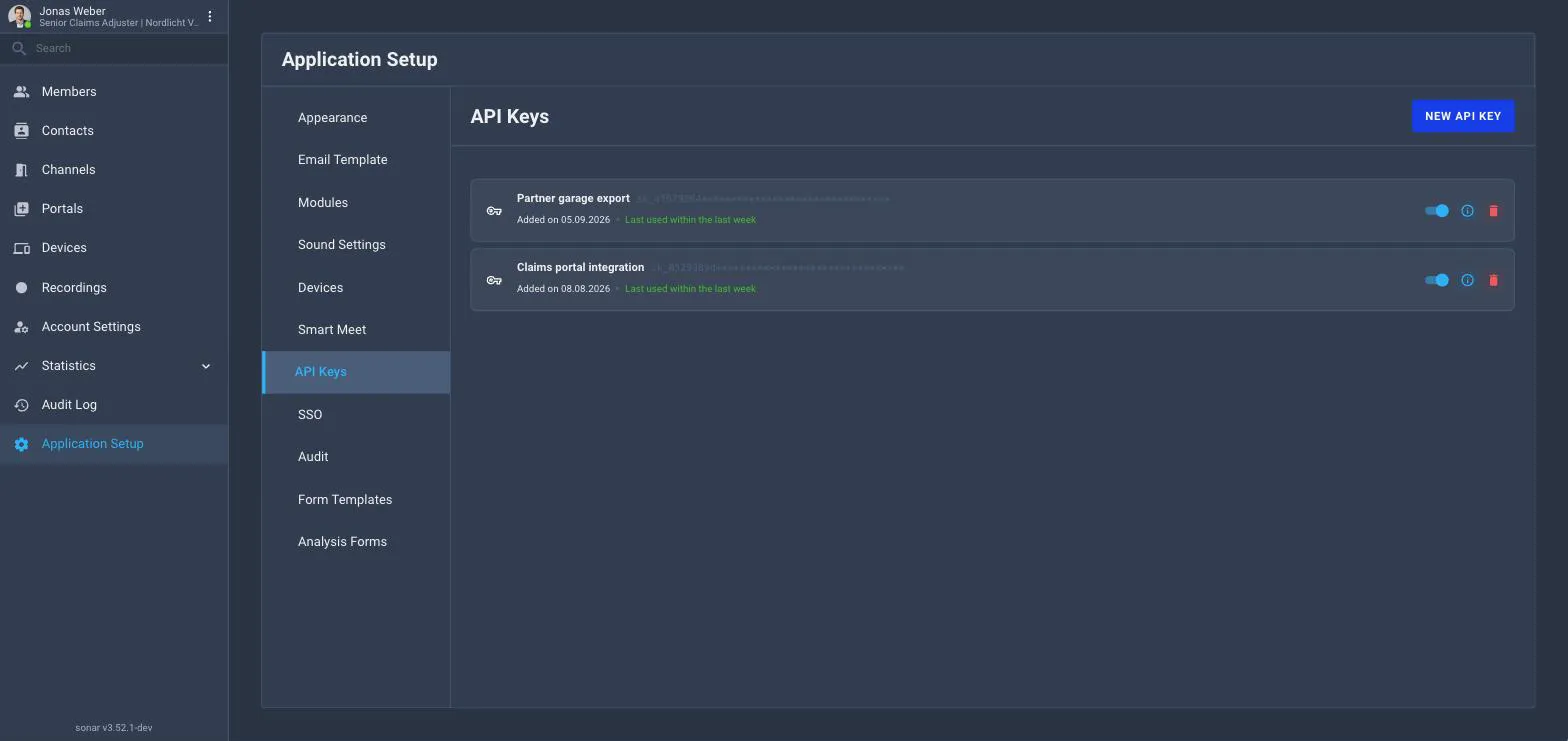
The API Keys tab of Application Setup showing an empty state that reads No API keys found, with a New API Key button
The API Keys tab — create keys for integrations and the SDK.