

Live audio translation
Live audio translation lets each side of a call speak their own language. An adjuster in Hamburg speaks German, the policyholder answers in Polish, and each hears the other translated, as speech, while the call is running.
It works in the call only. Nothing is written down or kept afterwards.
Where you see it
The agent, in the call
Every participant has a spoken language, shown as a flag next to their name in the Active call panel and on their video tile. The agent’s own language is prefilled from the portal or device the call came through.
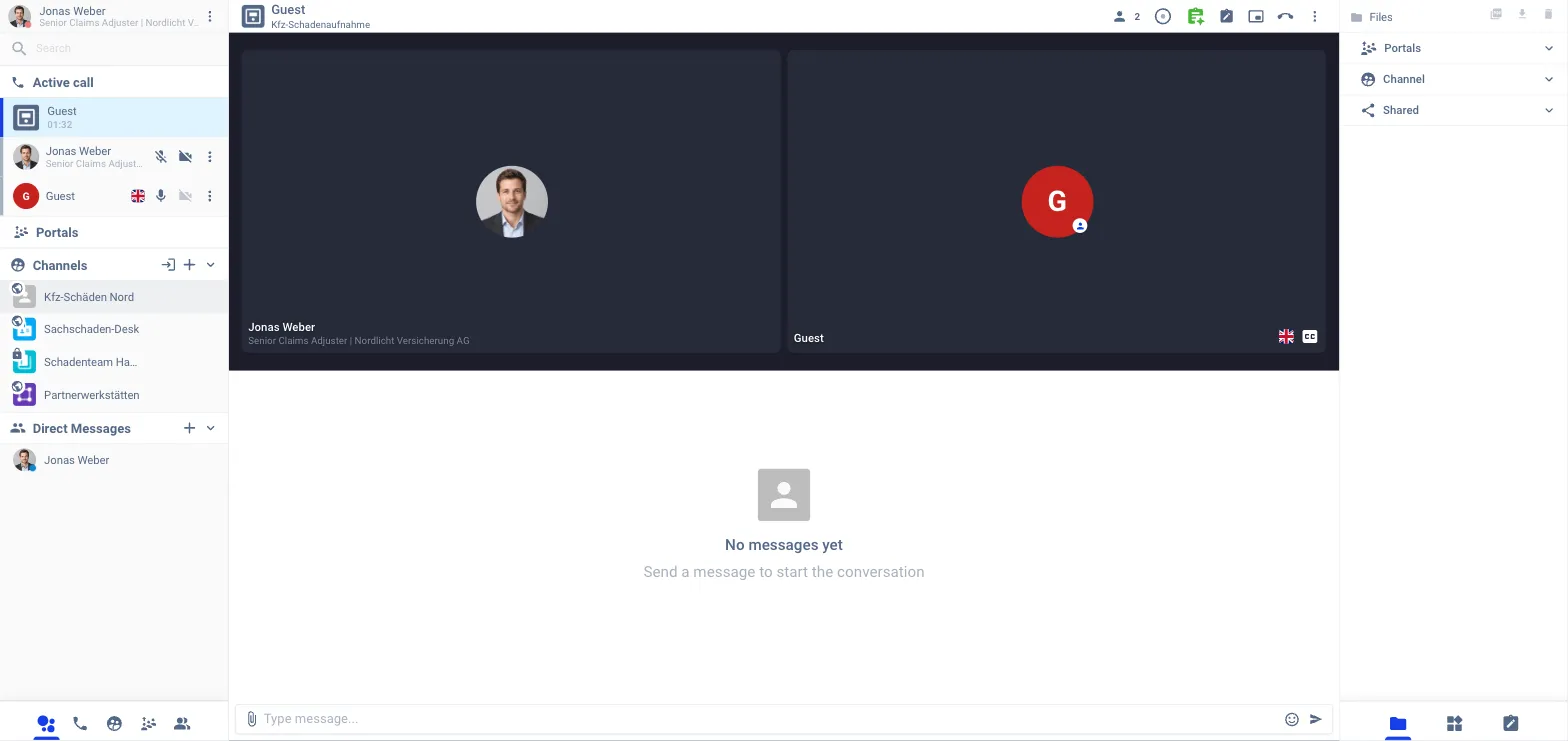
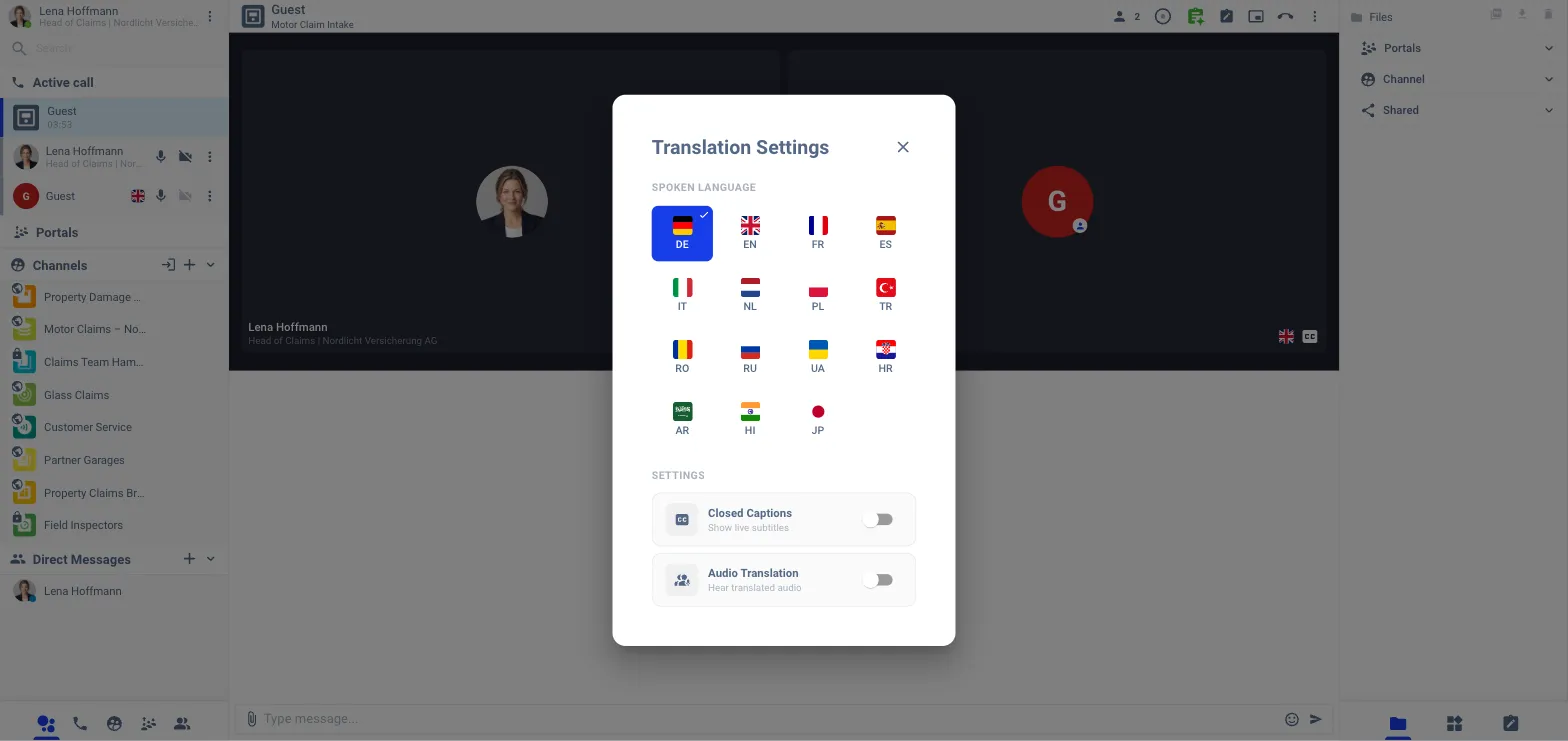
To change the language or switch translation on, open the menu next to your own name in the Active call panel and choose Translation Settings.
The customer, in the call
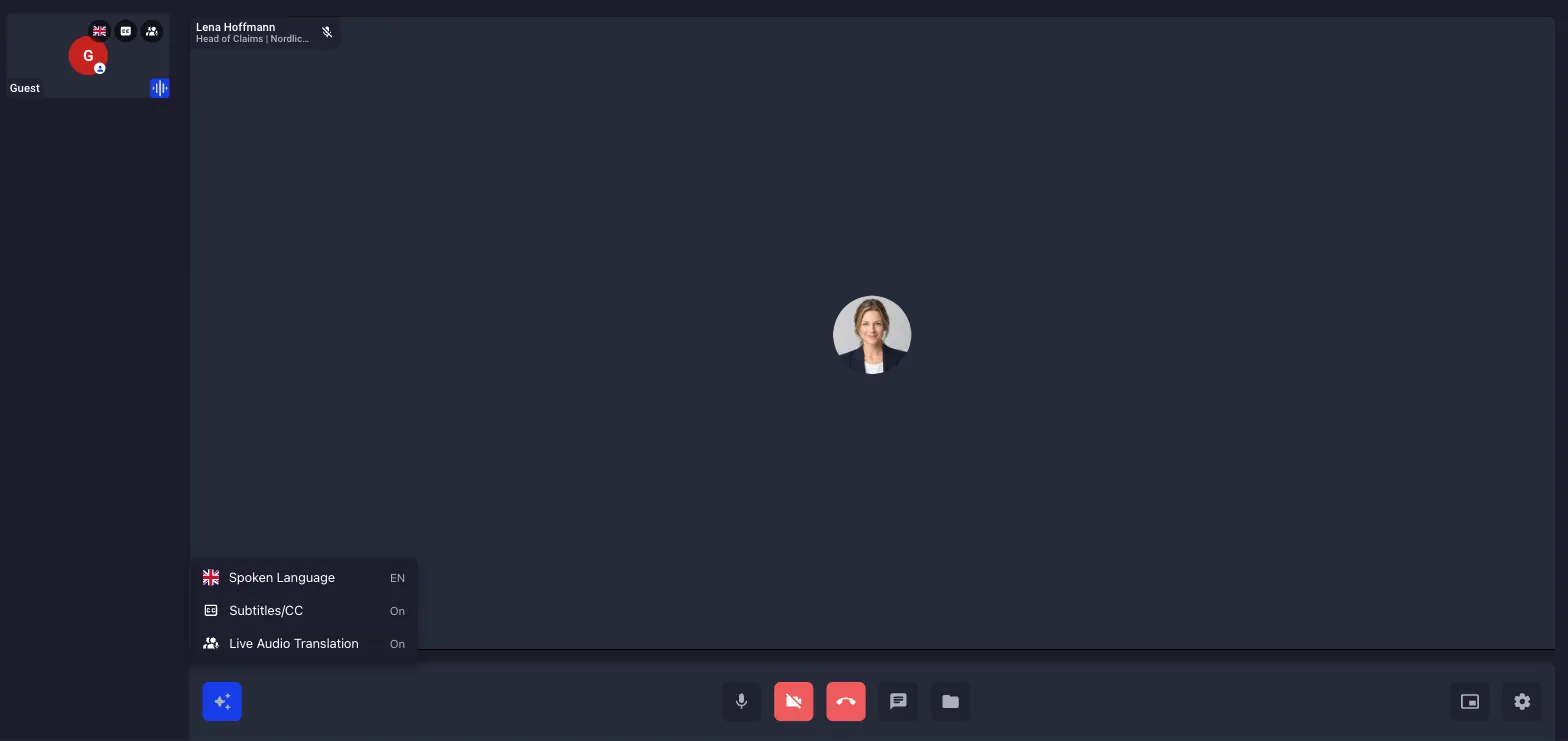
The customer opens the Smart Meet button (the sparkle icon at the bottom left of their call screen). The menu has three entries: Spoken Language, Subtitles/CC and Live Audio Translation.
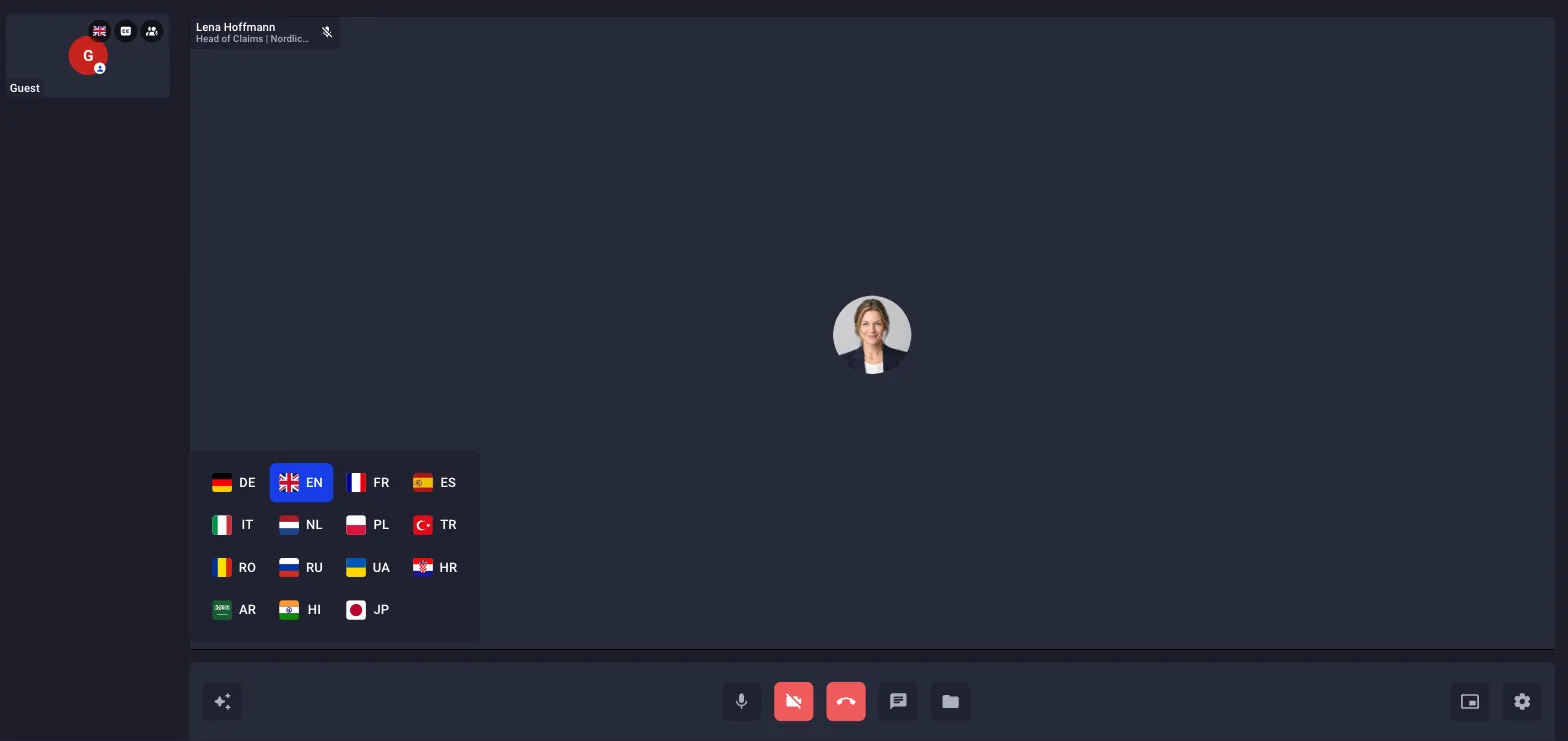
When the agent speaks a different language, the customer is told which one and offered to switch. Picking a language from the flag grid sets what the customer speaks; everything they hear is translated into it.
On a device
Calls from an inspection tablet or kiosk use the spoken language set on the device (Devices → device → General). The customer on the device gets the same Smart Meet menu.
Portals and channels
A portal can switch translation on automatically at the start of every call (Portals → portal → Call controls → auto-trigger live audio translation), so the customer does not have to find the menu. The agent’s spoken language for a portal is set on the portal’s General tab; for a channel it comes from the agent’s own profile.
How it works
-
Both sides have a spoken language: the agent’s from the portal, device or profile, the customer’s from the prompt when they join.
-
Either side switches Live Audio Translation on, or the portal auto-triggers it. With customer consent on, the customer is asked first. See Data retention & consent.
-
From then on each participant hears the other side in their own language. Turn it off from the same control at any time.
Switching it on for the workspace
Admins enable the module on Application Setup → Smart Meet → Modules → Live audio translation and choose the portals and channel types it runs in. See Smart Meet.