

Joining a call
If someone sent you a Sonar link, you’re joining as a participant. There’s nothing to install and no account needed — everything runs in your browser.
Joining from a meeting link
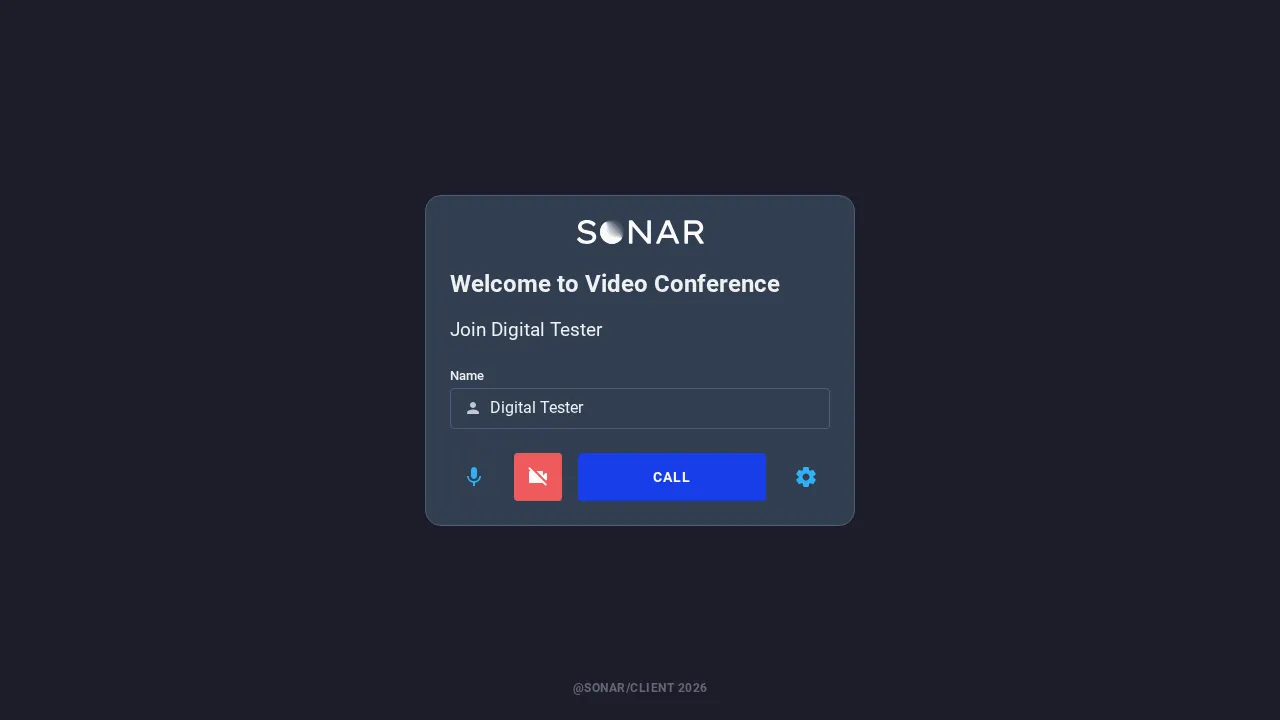
Opening a meeting or personal link brings you to a lobby. Enter your name, check your microphone and camera, then click Call to join.
-
Enter your name so others know who you are.
-
Use the microphone and camera buttons to turn each on or off, and the settings gear to pick which camera or mic to use.
-
Click Call to join.
Joining from a portal
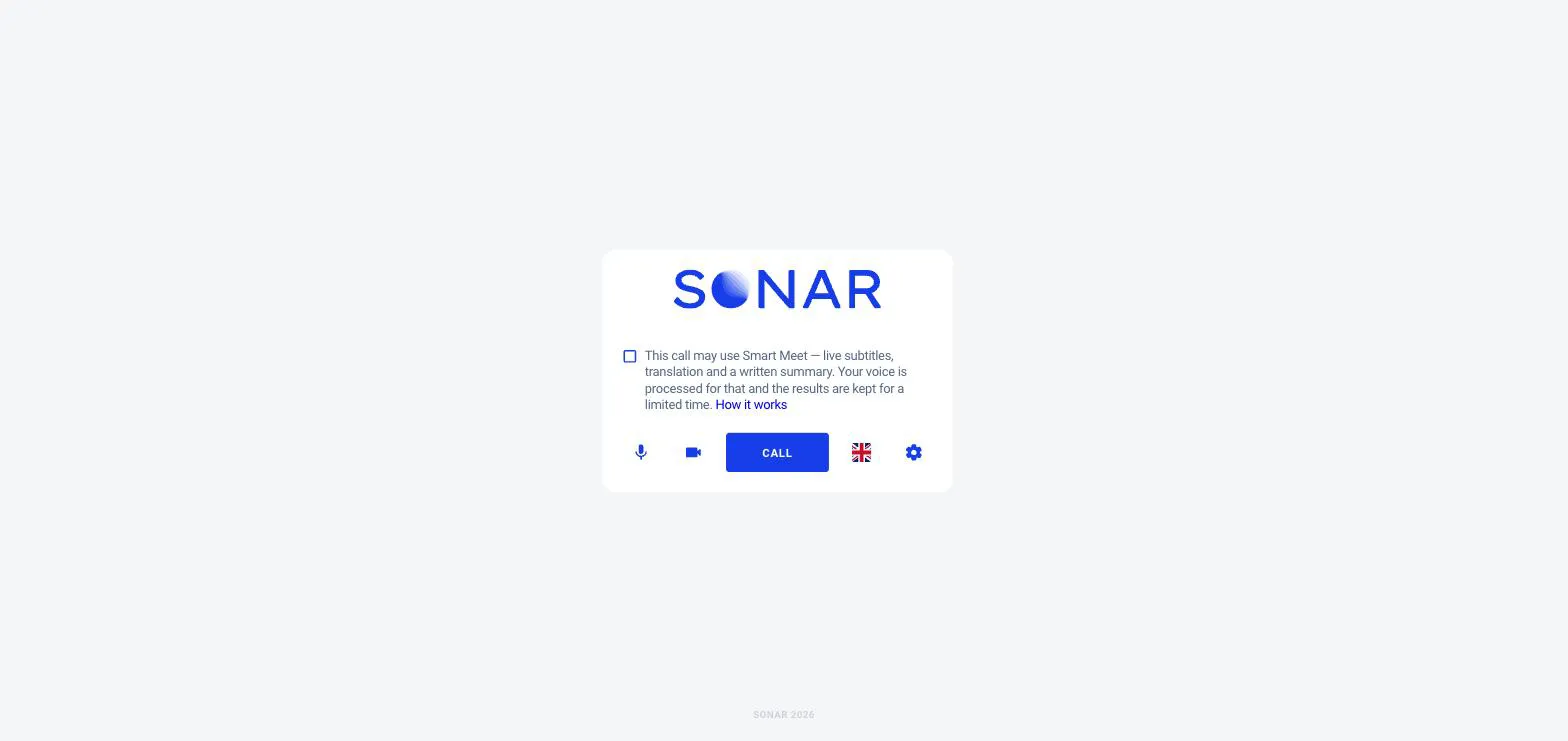
Some links open a portal instead — a simple screen with a Call button. Check your microphone and camera, then click Call to reach the next available person. You may wait briefly until someone picks up.
Camera & microphone
The first time you join, your browser asks permission to use your camera and microphone — choose Allow. If your camera or mic doesn’t work, check that the right device is selected under the settings gear, and that no other app is using it.