

Closed captions
Dieser Inhalt ist noch nicht in deiner Sprache verfügbar.
Closed captions show what is being said as text, live, while the call runs. Each participant reads the captions in their own spoken language, so a German agent and an English-speaking customer each see the conversation in their own words.
Captions are displayed and then gone. Nothing is stored.
Where you see it
The customer, in the call
Captions appear in a panel under the video. Each line carries the speaker’s name. The small arrow on the right expands the panel to read back the last lines or collapses it to a single line.
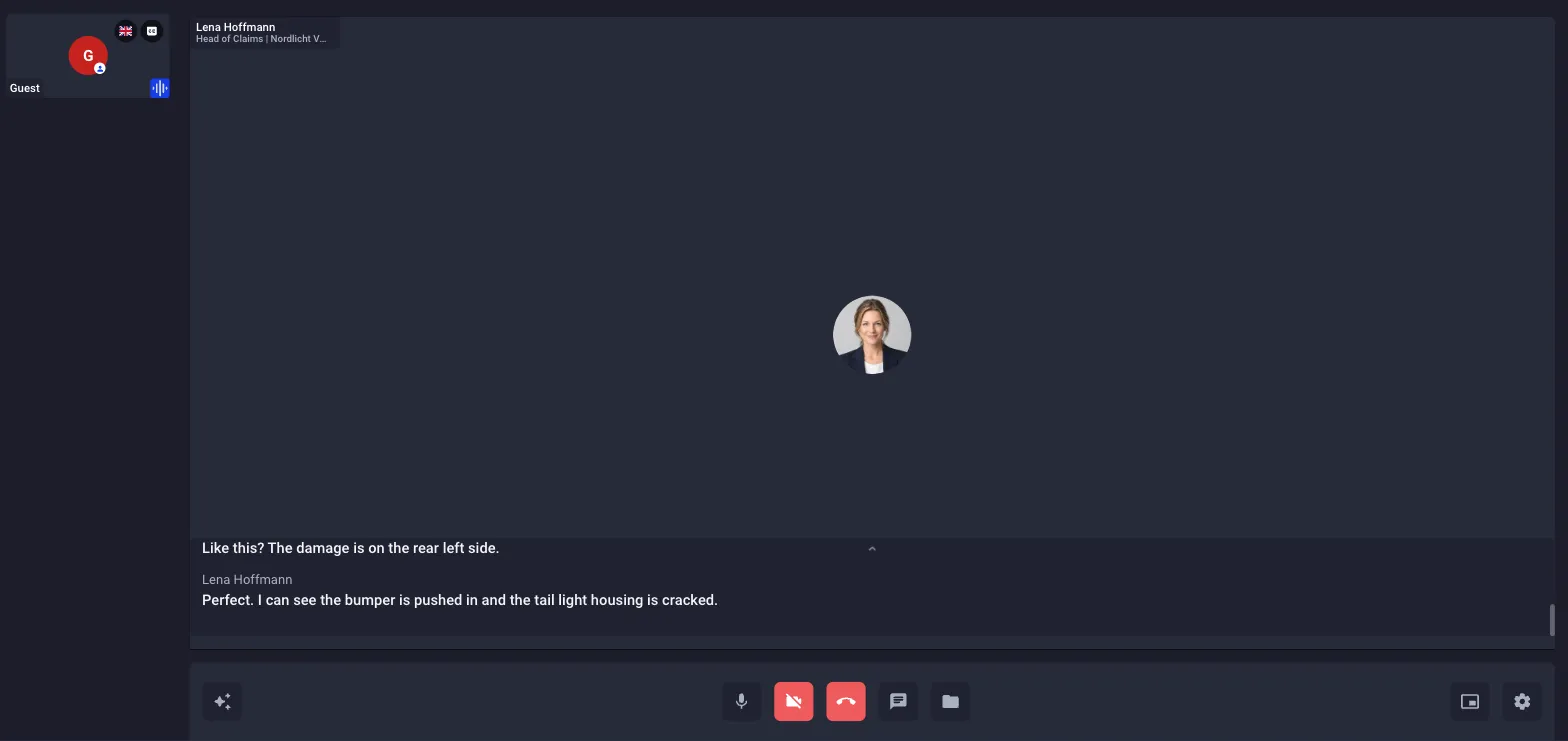
The customer switches captions on and off in the Smart Meet menu (sparkle icon, bottom left) under Subtitles/CC. A CC badge on their tile shows that captions are on.
The agent, in the call
For the agent, captions appear as an overlay across the video tiles, with the speaker’s avatar and name, in the agent’s spoken language.
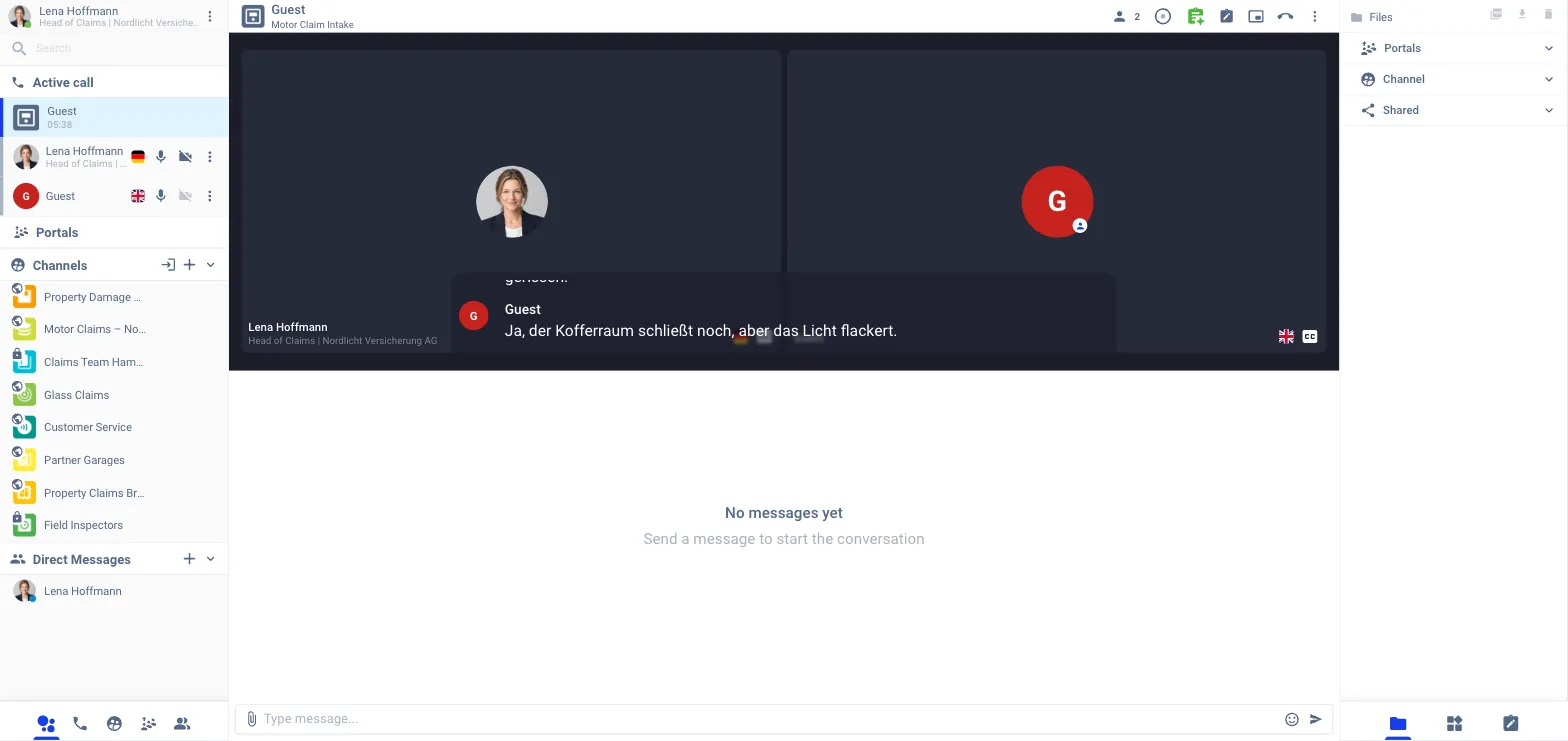
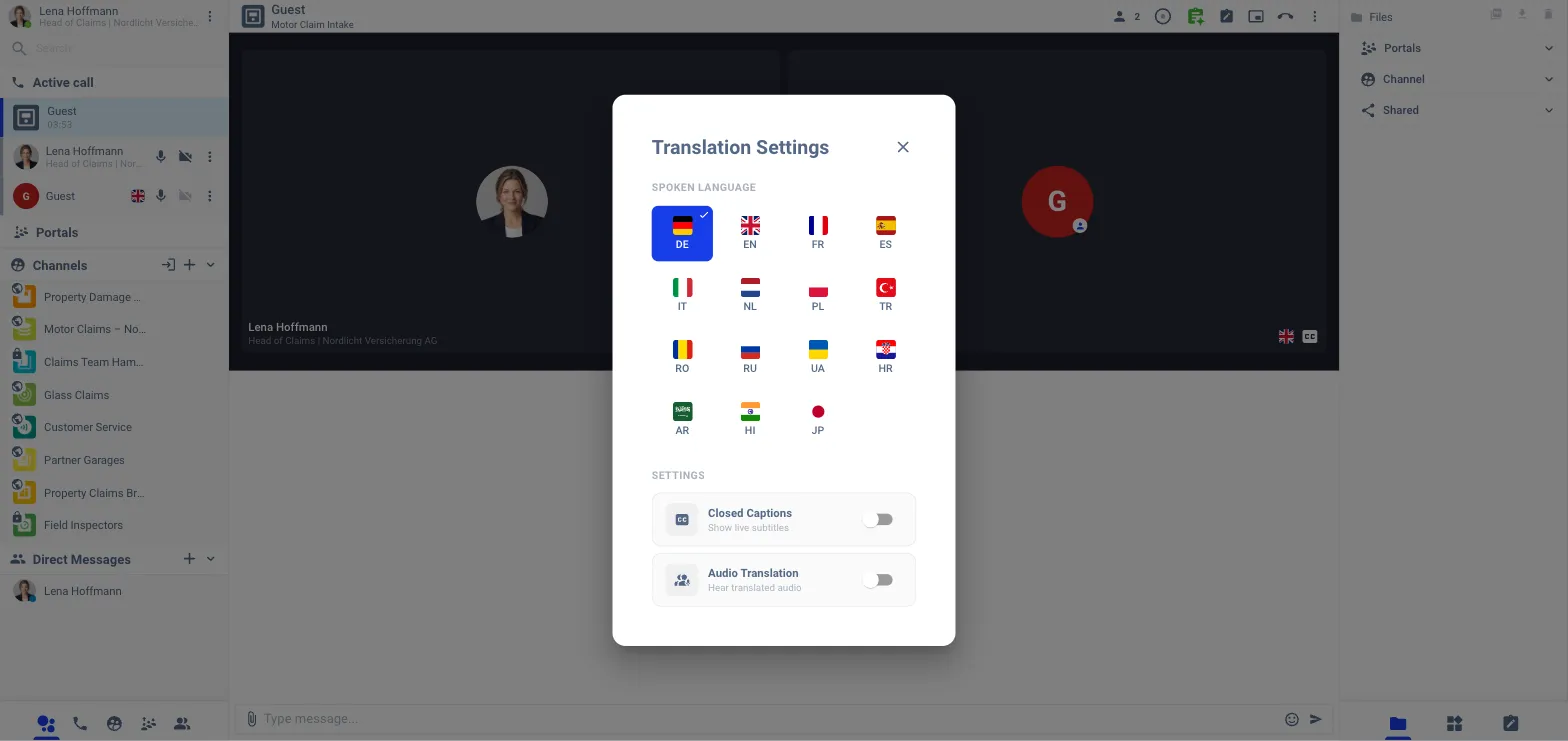
The agent switches captions on in Active call → own participant menu → Translation Settings → Closed Captions.
Picture in picture and mobile
When the call is shown as a floating window, captions follow into it. On a phone the captions appear above the call controls.
Portals
A portal can switch captions on for every call automatically (Portals → portal → Call controls → auto-trigger closed captions).
Requesting a language
If a participant’s captions arrive in the wrong language, another participant can ask them to switch. The other side sees a Language request and can accept or reject it; an unanswered request times out.
Switching it on for the workspace
Admins enable the module on Application Setup → Smart Meet → Modules → Closed captions and choose where it runs. See Smart Meet.